
Scheduled scripts running unattended belong in Task Scheduler. Cross-app business flows a non-engineer needs to own belong in Power Automate. Test automation that has to survive a UI redesign belongs in programmatic UI Automation (UIA). Complex, AI-driven work that touches multiple applications and needs a human checkpoint belongs in an agent/MCP pattern. Everything else in this guide explains why.
For teams staring at a stack of repeated manual steps and no clear starting point, the immediate move is small: log what actually happens, by hand, for a week, before choosing a tool.
-
Now: Instrument or shadow the workflow long enough to see the real branching logic, not the documented version.
-
Later: Build toward a maintainable, versioned automation architecture instead of a pile of one-off scripts.
Pro Tip: Document the ordinary path and the exceptions before choosing an automation tool. Orchard can help teams investigate activity and repeated work; process owners still need to validate the task and decide how to automate it.
Key Takeaways
The right Windows desktop automation approach depends on whether the task is clock-based, UI-durable, business-owned, or judgment-driven, and picking the wrong category is what turns automation into technical debt.
| Point | Details |
|---|---|
| Match tool to trigger type | Use Task Scheduler for clock or event triggers with no UI interaction required. |
| Reserve Power Automate for low-code ownership | Pick it when a non-engineer needs to maintain a cross-app business flow. |
| Default to UIA for durability | Element references survive UI, DPI, and localization changes that break pixel automation. |
| Treat agent/MCP as high-power, high-risk | Require dry-run, kill switches, and human approval before any mutating action runs live. |
| Discover before you automate | Orchard helps teams investigate employee activity, software usage, and repeated work to assess automation opportunities. |
Table of Contents
-
What Is the Agent/MCP Pattern for AI-Driven Desktop Automation?
-
How Do You Turn Repeated Manual Work Into a Reliable Playbook?
-
What Operational Practices Keep Desktop Automation Reliable?
-
How Should You Handle Errors and Recovery in Desktop Automation?
-
How Do You Optimize Performance and Resource Use in Automation Scripts?
-
How Do You Protect Credentials in Automated Windows Workflows?
What Are the Built-In Windows Automation Options?
Windows ships with two automation tools that cost nothing extra and require no new install: Task Scheduler and Power Automate desktop flows. Most teams should exhaust these before reaching for anything heavier.
Task Scheduler runs programs, scripts, and system commands on triggers: startup, logon, a specific time, or a Windows event ID. It supports recurrence patterns at the minute, hourly, daily, weekly, and monthly level, and the schtasks command line tool exposes those same triggers for scripted, remote, or CI-driven task creation, per Microsoft’s Task Scheduler documentation. It doesn’t understand application state. It just fires a process at a time or event and walks away. That’s exactly right for a nightly log rotation or a report generator that reads a file and writes a file. It’s the wrong tool the moment the script needs to react to what’s on screen.
Power Automate desktop flows, preinstalled in Windows 11, take the opposite approach. A recorder captures mouse and keyboard actions, and the flow designer offers more than 400 premade actions spanning Microsoft apps and a long list of third-party software, according to Microsoft’s Power Automate documentation. That low-code surface lets a business analyst, not just an engineer, own a flow that copies data between an ERP screen and a spreadsheet. The Verge’s walkthrough of Windows automation options shows exactly this pattern: record a flow, then modify the recorded actions instead of writing them from scratch.
Here’s the decision sequence worth running before you commit to either:
-
Does the task need to react to on-screen state, or does it just run on a clock? Clock-only work goes to Task Scheduler.
-
Will a non-engineer need to edit this flow later? If yes, Power Automate’s low-code editor beats a script only an engineer can touch.
-
Will this flow grow past a handful of steps? Power Automate flows accumulate fast, and an unmanaged pile of them becomes technical debt that nobody owns, an outcome Microsoft’s own desktop flow guidance flags as a governance risk, not a hypothetical one.
-
Does the task need to survive UI layout changes across app versions? Neither built-in tool guarantees that. Move to UIA.
How Does UI Automation Work for Robust Element Control?
UI Automation is the accessibility framework baked into Windows that exposes every button, text field, and menu as an object rather than a patch of pixels. That distinction is the entire reason UIA-based automation survives longer in production than anything built on screen coordinates.

Windows applications built with UIA support expose an accessibility tree: a hierarchy of elements, each carrying control type (button, edit field, list item), a set of properties (name, automation ID, bounding rectangle), and control patterns that describe what the element can do (invoke, toggle, expand/collapse, select). Automation code queries this tree through IUIAutomationElement and related COM interfaces documented in the Windows UI Automation overview, then acts on elements by reference instead of by screen position.
That matters for three concrete reasons:
-
Ref stability: an element reference survives a window resize, a monitor change, or a DPI scaling shift that would break coordinate-based clicks instantly.
-
Localization resilience: automation built on control type and automation ID keeps working when the visible label changes from “Save” to “Enregistrer,” where pixel or OCR-based automation breaks the moment text shifts.
-
No screen-coordinate dependency: a maximized window, a moved taskbar, or a second monitor doesn’t require recalibrating anything, because the automation never looked at pixels in the first place.
UIA also unlocks native dialogs and controls that pixel tools can’t reliably reach at all, which is a real constraint for test automation that has to run across different themes and display settings, not just different app versions.
None of that comes free. Engineers using UIA run into a few recurring headaches worth planning for up front:
-
Reconnecting to processes after a crash or restart requires re-walking the tree rather than assuming the old element handle still works.
-
AutomationId pitfalls: some third-party apps generate automation IDs dynamically, so an ID that’s stable today may not be stable after the vendor’s next release.
-
Timing and wait strategies: UIA queries can outrun the UI’s actual state, so explicit waits for a control’s existence or enabled state matter more than they do in scripted, sequential automation.
Practitioner consensus on this is blunt: treat pixel matching and OCR as a fallback for the rare cases where there’s genuinely no accessibility tree to query, like a game or a custom-rendered canvas, and default to element references everywhere else.
What Is the Agent/MCP Pattern for AI-Driven Desktop Automation?
The newest pattern in this space treats the desktop like a tool an AI agent calls, not a script an engineer wrote line by line. It runs on a loop: snapshot, ref, act.
The agent takes a snapshot of the current UI state (often the accessibility tree plus a screenshot), resolves the elements it needs into stable refs, and then acts on those refs, clicking, typing, or reading values back. Because the UI can change between the snapshot and the action, well-built implementations re-resolve refs right before acting rather than trusting a stale snapshot. MCP-style servers wrapping this pattern typically expose it as a small set of tool calls (window discovery, mouse control, keyboard control, visual capture) that a language model can invoke, as seen in open implementations like pywinauto-mcp.
That architecture is powerful and genuinely risky, because you’re letting a model decide what to click next. The safety controls aren’t optional extras. They’re the difference between a useful assistant and an incident report:
-
Dry-run mode: simulate the action sequence and log what would have happened before letting anything actually mutate a file, a form, or a database.
-
Kill switches: a hard, immediate stop that a human can trigger mid-run without waiting for graceful shutdown logic.
-
Human-in-the-loop approvals: any action that deletes, sends, or submits gets a checkpoint before it fires.
-
VM isolation: mutating actions run in a disposable, sandboxed environment so a bad decision can’t touch production data or a real user session.
Pro Tip: Treat every mutating action (delete, submit, send, pay) as requiring approval by default, and only relax that rule for actions you’ve watched run correctly dozens of times in dry-run mode.
This pattern earns its complexity when the job genuinely needs an AI’s judgment: cross-app flows with ambiguous inputs, assistants that adapt to varying document formats, or workflows where full observability and audit trails matter as much as the output itself. For a fixed, well-understood sequence, it’s overkill. Use UIA directly.
How Do You Choose the Right Automation Approach?
Pick the approach by answering six questions about the task itself, not by defaulting to whatever tool the team already knows.
-
What’s the app’s tech stack? Win32, WPF, and modern UWP apps generally expose a usable UIA tree. Some Electron and custom-rendered apps don’t, which pushes you toward pixel/OCR fallbacks or vendor APIs.
-
Can you reliably query UIA elements? If yes, programmatic automation beats scripting or recording every time you need durability across releases.
-
Does this need to run unattended, overnight, with no one watching? That favors Task Scheduler or a hardened UIA script over anything requiring live supervision.
-
What’s the scale and observability requirement? A dozen runs a day is different from thousands, and thousands demands logging, metrics, and alerting from day one.
-
What’s the security and data handling profile? Credentials, PII, or financial data in the flow changes your isolation and vaulting requirements immediately.
-
Who owns this once it ships, and what’s their skill level? A flow a business analyst must maintain shouldn’t be a raw script only one engineer understands.
| Constraint Combination | Recommended Approach Category |
|---|---|
| Clock-based, no UI interaction needed | Native scheduling (Task Scheduler) |
| Cross-app, low-code, business-owned | Low-code recorder flows (Power Automate) |
| Stable app, needs durability across releases | Programmatic UIA / ref-based automation |
| Ambiguous inputs, cross-app judgment calls, needs audit trail | Agent/MCP orchestration |
| Repeated but undocumented manual work, unclear scope | Discovery-based Playbook approach |
Before picking a column, ask the stakeholders three quick questions: How often does the underlying app’s UI actually change? Who gets paged when this breaks at 2 a.m.? And what happens downstream if this automation acts on bad data? The answers usually make the right row obvious.
How Do You Turn Repeated Manual Work Into a Reliable Playbook?
Before selecting an automation approach, establish what the task involves and where exceptions occur. Orchard's activity and workforce analytics can help inform that investigation, alongside input from the people who do the work.
-
Review available activity. Use the systems and activity in your agreed scope to understand the work being investigated; confirm coverage and data handling before deployment.
-
Identify repeats. Check how often the task occurs and estimate its manual effort. Validate the estimate with the process owner rather than treating activity time as a productivity score.
-
Choose an implementation. Compare a script, API integration, low-code workflow, or other approach against the task's requirements and the capabilities you have verified.
-
Define exception handling. Document where a person must review a result and what happens when the ordinary path does not apply.
-
Supervise and measure. For any enabled automation, review completed runs and compare performance with the baseline. Keep estimated time and labor value separate from actual spending reductions.
A Playbook itself is a specific artifact: it holds the sequence of steps, the decision points where behavior branches, the exception handlers for known edge cases, and an audit log of every run. That structure is what makes it maintainable months later, when the person who built it has moved to a different project and someone else needs to understand why a branch exists.
Capturing decision nodes and exception handling explicitly, rather than only the happy path, is what makes an automation safe to run unattended and auditable after the fact.
That principle holds regardless of which tool builds the automation. A script with no record of its exception logic is a liability the moment it fails silently at 3 a.m. A Playbook with that logic written down, editable, and logged is something a new team member can actually inherit.
What Operational Practices Keep Desktop Automation Reliable?
Reliability in production comes from three disciplines: testing before deployment, isolating what the automation can touch, and maintaining it after launch.
Testing should happen in ephemeral virtual machines that mirror production, not on someone’s laptop. Run dry runs before any live deployment, integrate automation tests into CI where schtasks’ scripted, parameterized syntax makes remote task creation genuinely testable, and design every step to be idempotent so a retry after a crash doesn’t duplicate a submitted form or a sent email.
Isolation and security mean the automation runs under a dedicated service account, never a personal login. Credentials belong in a vault, not a config file or a script’s plaintext variable. Mutating actions (deletes, payments, sends) need explicit limits, and anything touching sensitive systems should run sandboxed so a bug can’t cascade into production data.
Maintenance is where most automation programs quietly rot. A few habits prevent that:
-
Version every Playbook or script, so you can diff a change and roll back a bad one.
-
Store scheduled tasks in a dedicated Task Scheduler folder separate from system tasks, so nobody accidentally edits or deletes one during cleanup.
-
Run periodic discovery audits to catch automations built on a UI that’s since changed.
-
Keep logs and metrics on every run, and write a runbook for what a human should do when a failure alert fires.
Pro Tip: Start with one Task Scheduler job in its own folder before building anything more ambitious. Practitioner accounts of automating a daily routine consistently point to that small, reliable first win as what earns the buy-in for a larger automation program.
How Should You Handle Errors and Recovery in Desktop Automation?
Every desktop automation will eventually hit a dialog it didn’t expect, a control that hasn’t loaded yet, or an app that crashed mid-run. The design question isn’t whether to handle that. It’s how much you handle explicitly versus how much you let fail loudly.
Build explicit wait strategies rather than fixed sleeps. A UIA-based automation should poll for an element’s existence and enabled state with a timeout, then escalate to a defined fallback (retry, screenshot and alert, or safe abort) rather than crashing on a null reference. Fixed sleep(5) calls are the single most common source of flaky automation, because they assume a constant load time that network conditions and system load routinely violate.
Design for idempotency wherever the automation writes data. If a step submits a form or writes a database record, a retry after a partial failure shouldn’t create a duplicate. That usually means checking for the record’s existence before writing, or using a unique transaction identifier the automation controls.
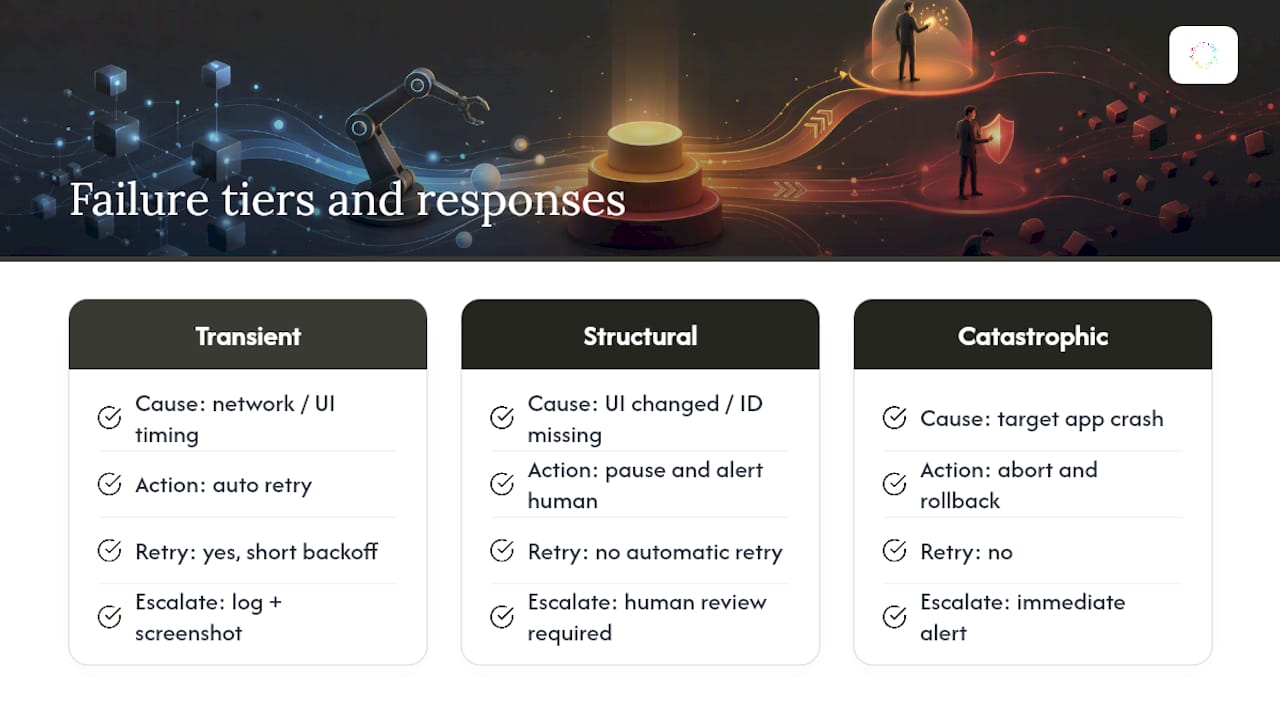
Classify failures into tiers: transient (network blip, element not yet rendered, retry automatically), structural (the UI has changed, the automation ID is gone, alert a human and pause the workflow), and catastrophic (the target app crashed, kill the run and roll back any partial state). Each tier gets a different response, and conflating them is how a minor glitch turns into a corrupted dataset.
Every failure needs a log entry with enough context, timestamp, step number, element state, screenshot if available, to actually debug it later without reproducing the run from scratch.
How Do You Optimize Performance and Resource Use in Automation Scripts?
A desktop automation that runs fine in testing can choke in production if it’s competing for CPU, memory, or UI thread access with everything else running on the machine.
Batch UIA queries instead of re-walking the accessibility tree for every single element. Repeated tree traversal is expensive, and caching element references within a single run (while still re-validating them before acting on them) cuts execution time noticeably on complex windows with deep control hierarchies.
Watch memory in long-running processes. Automation that loops for hours, especially anything using screenshot capture or OCR for fallback matching, can leak memory if image buffers and element handles aren’t released. Restart the process on a schedule if the underlying framework doesn’t clean up reliably on its own.
Avoid running multiple heavy automations against the same machine simultaneously unless you’ve tested for resource contention. Two UIA-heavy flows fighting for the same UI thread produce timing failures that look like application bugs but are really scheduling problems.
For scale, move from single-machine execution to a pool of dedicated automation VMs once run volume exceeds what one machine can handle reliably, and add metrics (run duration, failure rate, resource usage per run) so a slow degradation shows up before it becomes an outage.
How Do You Protect Credentials in Automated Windows Workflows?
Credentials are the highest-value target in any automation pipeline, because an automation that can log in somewhere is functionally equivalent to a person who can log in there, minus the judgment.
Never hardcode a password, API key, or token into a script or a Power Automate flow. Store secrets in a dedicated credential vault or the Windows Credential Manager, and pull them at runtime rather than reading them from a plaintext config file that ends up in version control by accident.
Run automation under a dedicated service account with the narrowest permissions the task actually needs, not an administrator account used out of convenience. If the automation only needs to read a shared folder, it shouldn’t also have write access to the domain controller.
Log what the automation does, never what it typed. A run log that captures every keystroke for debugging purposes will eventually capture a password, and that log file becomes a liability the moment it’s written.
For agent/MCP style automation specifically, credential handling deserves extra scrutiny, because a model deciding what to type introduces a new failure mode: it could type a stored credential into the wrong field entirely. Isolation and human approval on any step involving authentication closes that gap.
Rotate credentials used by automation on the same schedule you’d apply to any service account, and audit which automations hold which credentials at least quarterly. An automation that was retired six months ago but still has valid vault access is exactly the kind of gap that shows up in a breach postmortem.
What Should Engineers Expect From Automation Trends?
AI orchestration is pulling desktop automation toward the agent/MCP pattern faster than most teams’ governance is ready for. That’s the honest tension right now: the technology to let an agent click through an unfamiliar app is ahead of most organizations’ comfort with letting it happen unsupervised, and that gap is exactly where things go wrong.
A conservative rollout starts with representative test cases, explicit approval boundaries, and a way to stop or recover a failed run. The required test period depends on task frequency, variation, and risk; a fixed number of weeks does not establish readiness.
For a review of where activity analysis could support your automation planning, request an Orchard briefing.
This guide provides general evaluation criteria; validate them against your own applications and operating requirements.
Why Orchard Fits Teams Choosing an Automation Approach
Orchard can support the investigation that comes before an automation decision. Its employee activity and workforce analytics help teams examine software usage, workload patterns, and repeated work across the available scope.
Isaac helps leaders investigate questions using available activity and evidence, while Studio provides custom dashboards and views. Teams can choose and enable automations and track completed runs with estimated time and labor value. These estimates do not establish reduced spending, and application coverage and deployment requirements need confirmation for your environment.
Request an Orchard briefing to discuss the tasks you want to investigate, supported environments, and data-handling requirements before choosing an implementation.
Where to Learn More About Windows Automation Tools
Start with Microsoft’s own documentation for anything you plan to run in production: the Task Scheduler overview and schtasks reference for scheduled scripts, the Power Automate desktop flows guide for low-code flows, and the UI Automation overview for programmatic control.
For practical walkthroughs, The Verge’s guide to automating Windows tasks and How-To Geek’s piece on automating a daily routine show real examples worth copying. For how automation discovery translates outside desktop apps entirely, Assignify’s guide to AI-driven grading automation is a useful cross-industry comparison. For Orchard’s own approach, see the product overview.